Document Upload & Preprocessing
Before you can annotate or analyze your data, you need to bring it into your DATS workspace. DATS handles a wide variety of data modalities, including text, images, audio, and video files, as well as live web pages.
Every document brought into DATS runs through an automated machine-learning pipeline that extracts text, identifies entities, and generates semantic embeddings.
1. Accessing the Upload Dialog
Because uploading data adds it directly to your corpus, the upload process is initiated from the Search View.
- Navigate to the Search View (magnifying glass icon in the left navigation bar).
- Look at the top toolbar (just above the search results).
- Click the Upload Documents icon (usually depicted as a cloud with an up arrow). This opens the Document Upload Dialog.
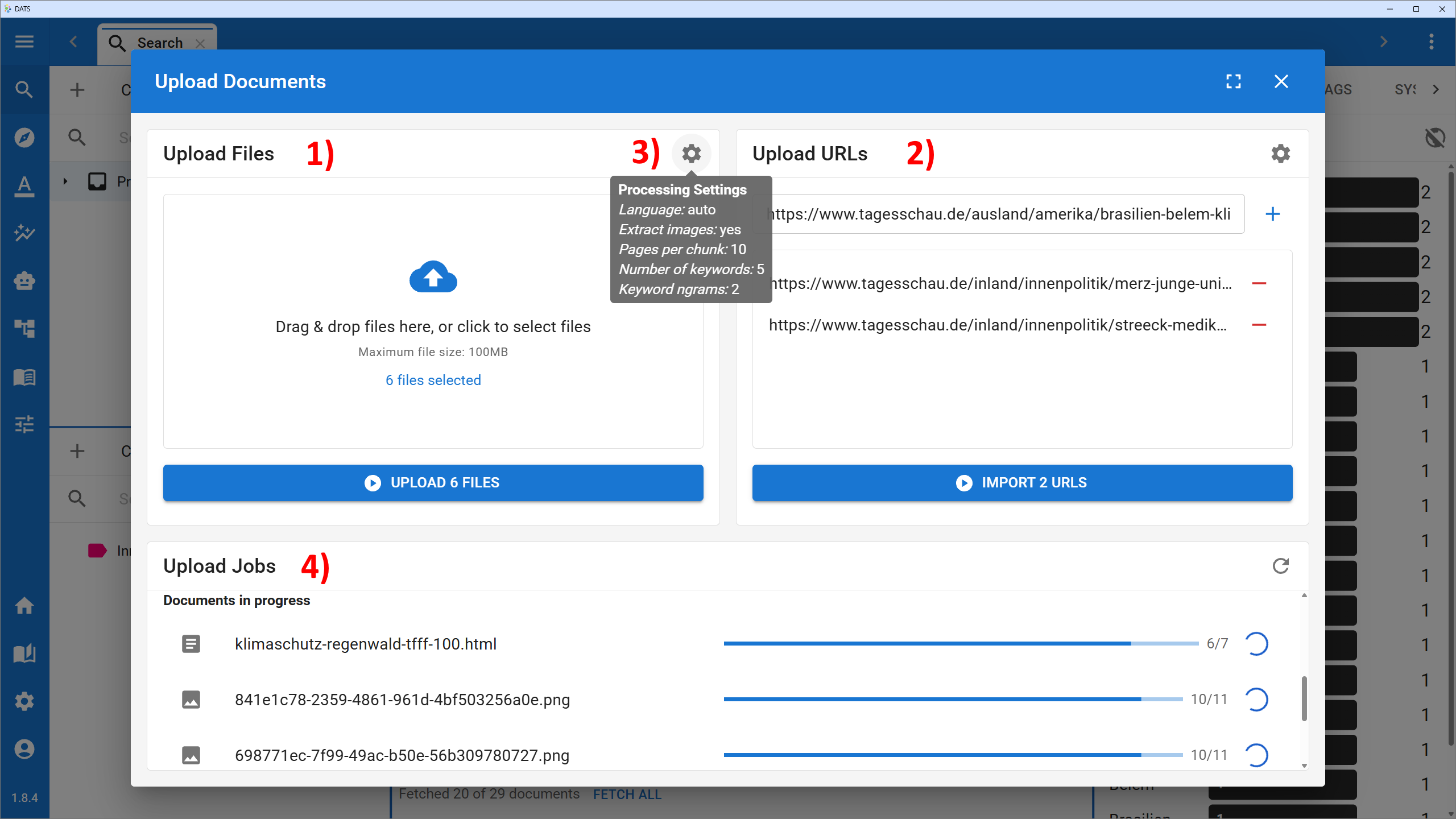
The Document Upload Dialog allows you to bring files and websites into your DATS project.
2. Uploading Files vs. URLs
The upload dialog is divided into two main sections, allowing you to ingest data from your local computer or directly from the web.
Upload Files (Left Panel)
Use this side for files you already have saved locally.
- Supported Formats: PDF, DOCX, TXT, HTML, various image formats (PNG, JPG), audio (MP3, WAV), and video (MP4). You can also upload ZIP archives containing multiple files.
- How to use: Simply drag and drop your files into the blue dashed box, or click the box to open your computer's file browser. Once selected, click the Upload Files button to begin processing.
Upload URLs (Right Panel)
DATS features an integrated web crawler. If you want to analyze online news articles, blogs, or other web pages, you don't need to save them as PDFs first.
- How to use: Paste the URLs of the websites you want to upload into the text box (one URL per line).
- Click Upload URLs (or Start Crawler Job!). DATS will visit the websites, scrape the main text content (ignoring navigation menus and ads), download embedded media, and upload them as clean documents.
3. Preprocessing Settings (The Cog Icon)
Between the two upload panels, you will see a small Settings (Cog) icon. Clicking this reveals vital settings that dictate how DATS processes your newly uploaded data.
It is highly recommended to review these settings before initiating a large upload!
- Language: By default, this is set to Auto, meaning DATS will attempt to detect the language of the text. If your entire corpus is in a specific language (e.g., German), explicitly selecting de can improve processing accuracy.
- Pages per chunk: (Crucial for large texts) Large files (like a 300-page book) cannot be processed by AI models all at once. DATS splits them into smaller "Documents" (grouped in a File-Folder). The default is 10 pages per chunk. You can adjust this based on your preferred reading and analysis size.
- Extract images: Toggle whether DATS should extract images embedded within PDFs and HTML pages and process them as separate image documents.
- Number of keywords: DATS automatically extracts keywords from your texts. Here you can define the maximum number of keywords to extract per document.
- Keyword n-gram size: Determines the length of the extracted keywords (e.g., 1 for single words like "Democracy", 2 for bigrams like "Representative Democracy").
4. The Processing Pipeline and Upload Jobs
Once you click upload, your documents appear in the Upload Jobs section at the bottom of the dialog.
You will see a progress bar for each file. Depending on the size and modality of the file, this process can take some time. Behind the scenes, DATS is running your data through a complex, multi-modal pipeline:
- Audio/Video: Automatically transcribed into text using Speech-to-Text models.
- Images: Run through object detection and automatic image captioning.
- Text: Cleaned, split into chunks, and run through Named Entity Recognition (finding people, organizations, locations).
- Embeddings: Semantic vectors are calculated for text and images to power the cross-modal similarity search.
(For a deep dive into the technical architecture of this pipeline, refer to the Technical Appendix: The Preprocessing Pipeline).
5. Monitoring Success: The Document Health View
Occasionally, a preprocessing step might fail (e.g., a PDF might be corrupted, or a language detection model might stumble on a highly mixed-language text).
You don't need to stare at the upload progress bar. You can close the upload dialog and check on your documents later using the Document Health View.
- Accessed via the left navigation bar under Tools > Document Health, this view shows exactly which preprocessing steps succeeded or failed for every document, and allows you to retry them.
- (Learn more in the Document Health View Guide).