The Whiteboard View
Discourse analysis is rarely a linear process. As you read documents, create annotations, and run analyses, you need a space to synthesize your findings, map out complex relationships, and build theoretical models.
To support this hermeneutic phase of interpretation, DATS includes the Whiteboard View—a flexible, infinite 2D canvas that behaves similarly to tools like Miro or FigJam, but is deeply integrated with your actual research data.
(Read more about the design and application of this feature in our publication: Extending the Discourse Analysis Tool Suite with Whiteboards for Visual Qualitative Analysis).
1. The Whiteboard Dashboard
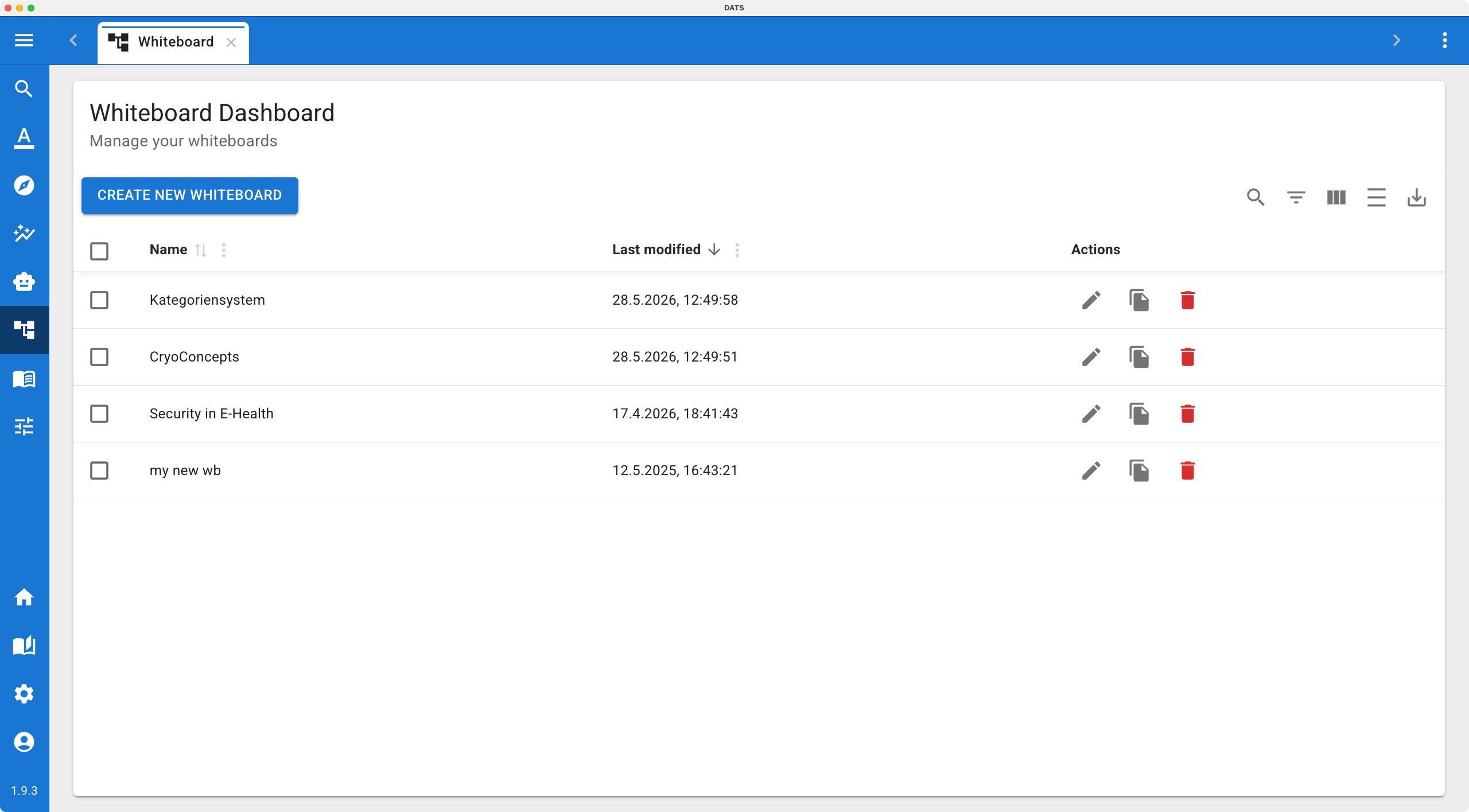 Manage your visual workspaces from the Whiteboard Dashboard.
You can access the Whiteboard feature by clicking the Whiteboard icon (the framed picture symbol 🖼️) in the main left navigation bar.
This opens the Whiteboard Dashboard, which manages all the canvases created within your current project.
- Manage Canvases: Here you can see a grid of all existing whiteboards. You can rename, duplicate, or delete them.
- Create New: Click the Create new whiteboard button to generate a fresh, blank canvas for a new brainstorming session or mapping task.
- Open: Double-click any whiteboard card to open it in a new tab in your top tab bar.
2. The Canvas and Basic Tools
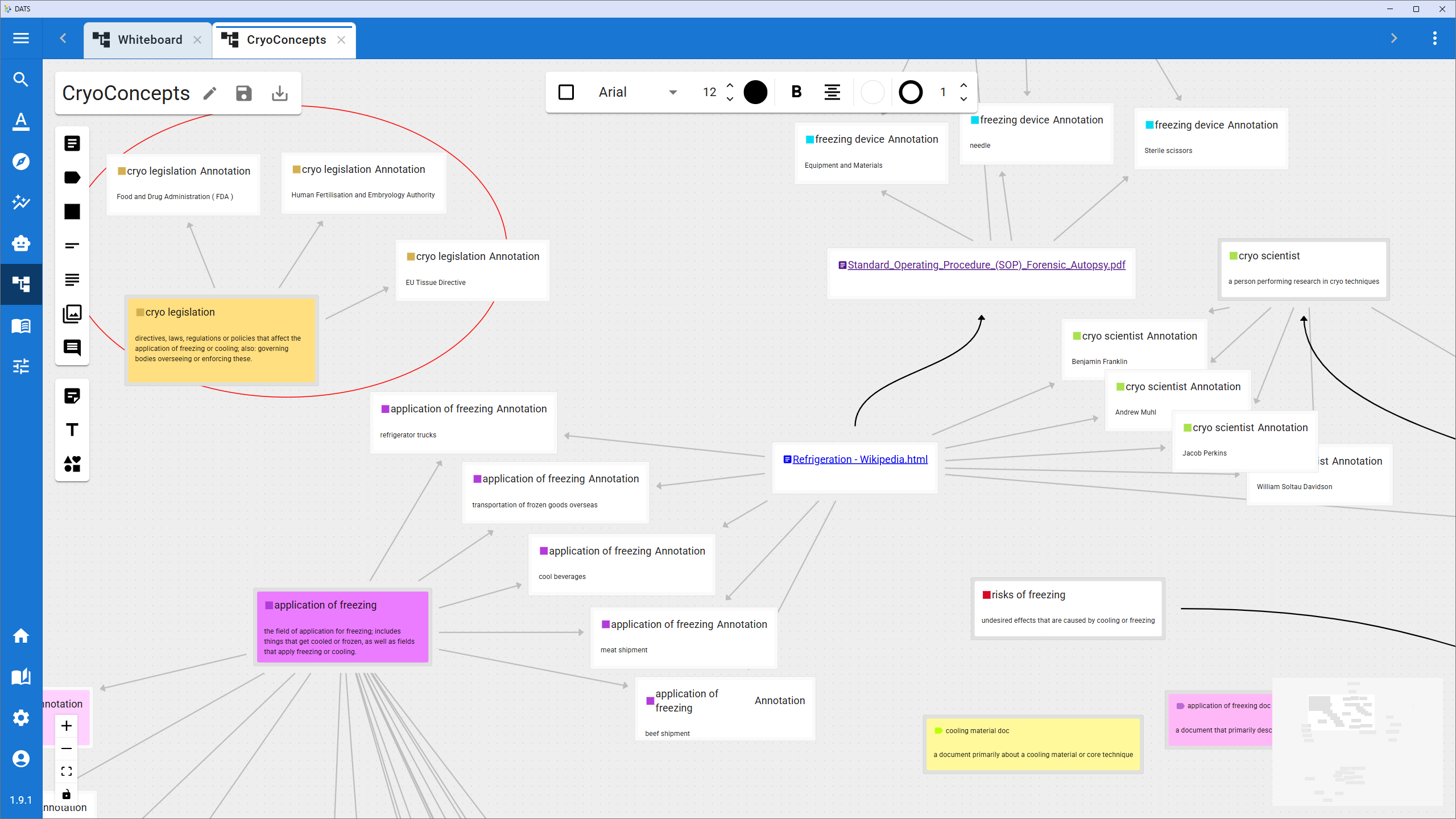 Use standard diagramming tools to map out your initial thoughts.
When you open a whiteboard, you are presented with a limitless grid. The interface is designed to be highly intuitive for anyone who has used digital drawing or diagramming tools.
- Navigation: Click and drag on the empty background to pan around the canvas. Use your mouse wheel or trackpad to zoom in and out.
- The Toolbar: Located on the screen, the toolbar provides standard diagramming elements:
- Text & Post-its: Add standalone text blocks or colorful sticky notes to write down hypotheses or section headers.
- Shapes: Draw rectangles, circles, and custom polygons.
- Connections: Draw arrows and lines to link different objects together, representing relationships, flows, or conflicts.
3. Integrating DATS Entities
What makes the DATS Whiteboard much more powerful than a standard drawing tool is its deep integration with your corpus. You are not just drawing abstract boxes; you are interacting with your actual data.
You can easily drag and drop (or import) your project's specific research objects directly onto the canvas as interactive nodes:
- Documents: Place specific news articles or images onto the board to represent key case studies.
- Codes & Code Trees: Import codes from your taxonomy. You can use the whiteboard to visually reorganize your code tree—moving child codes around or grouping them conceptually before making changes in the official settings.
- Annotations: Pull specific highlighted text snippets directly onto the canvas. This is incredible for grouping quotes that support a specific theoretical argument.
- Tags: Add tag nodes to visually group related documents.
Interactive Nodes: When you place a DATS entity (like a Document or a Code) on the whiteboard, it isn't just a static picture. You can usually interact with it—for example, double-clicking a document node on the whiteboard can open that document for reading!
4. Typical Use Cases for Discourse Analysis
Because the canvas is entirely free-form, you can use it however it best suits your methodology. Some common uses include:
- Code Taxonomy Mapping: Visually planning out a complex, hierarchical codebook before applying it to the text.
- Actor-Network Maps: Placing entities (Organizations, Politicians) on the board and drawing arrows between them to map out who is influencing whom in a specific debate.
- Narrative Timelines: Creating a custom, visual timeline of key events by placing specific document nodes in chronological order and surrounding them with interpretive post-it notes.
- Sampling Maps: Visually separating your corpus into "Train" and "Test" groups for machine learning, or defining specific sub-corpora for comparative case studies.
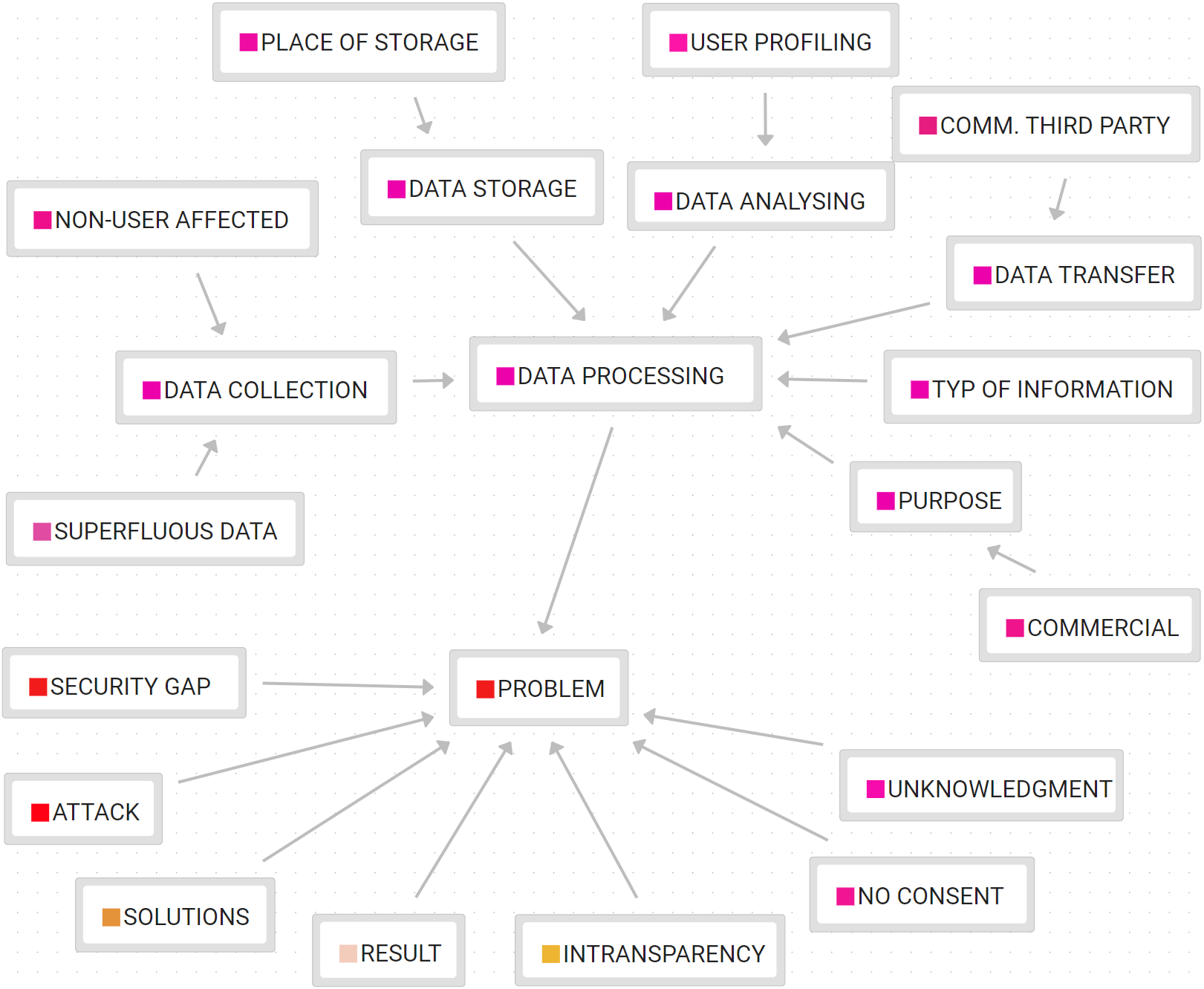 Use the whiteboard to visually plan out your code taxonomy before applying it to the text.
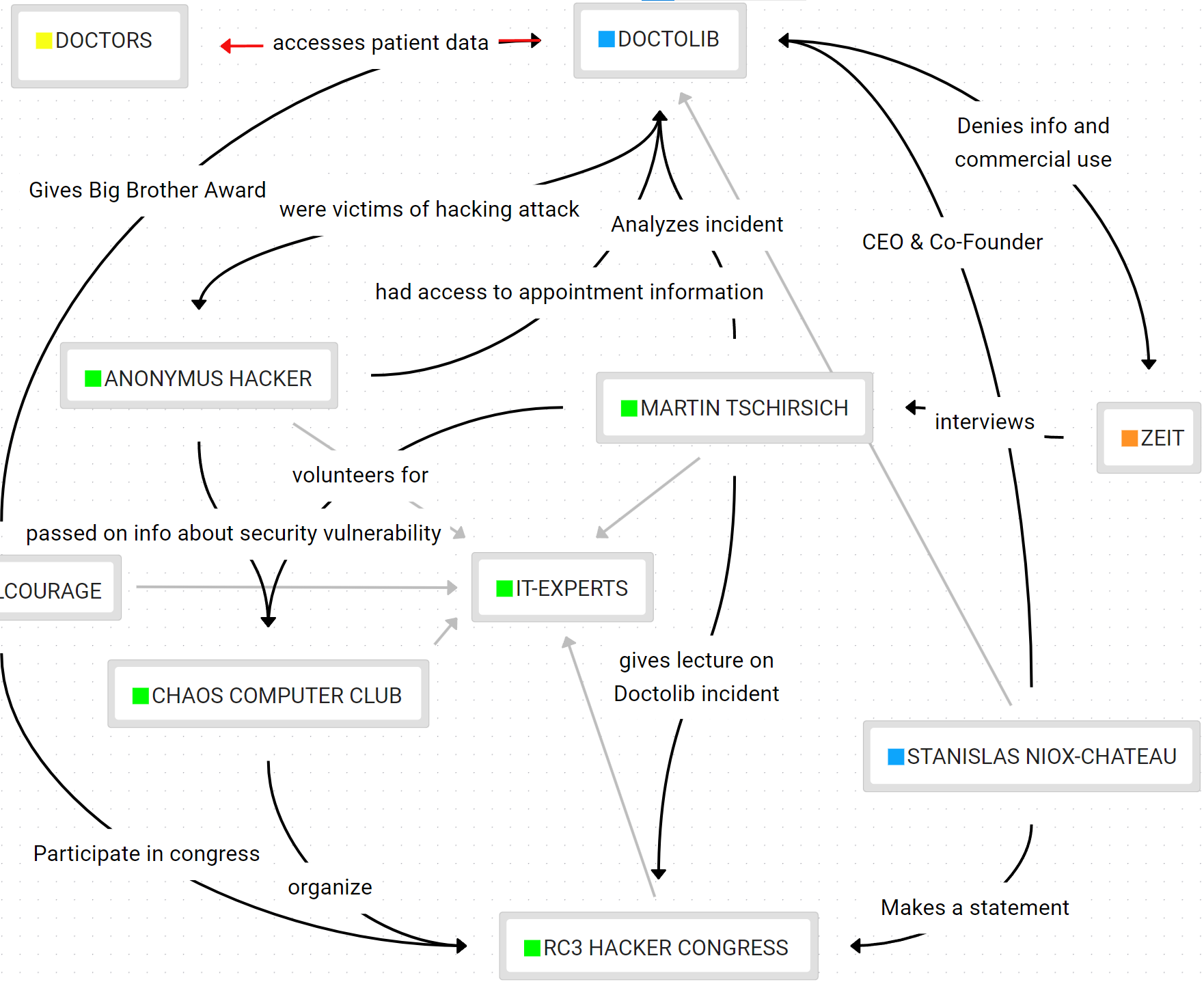 Use the whiteboard to map out complex relationships between actors in your corpus.
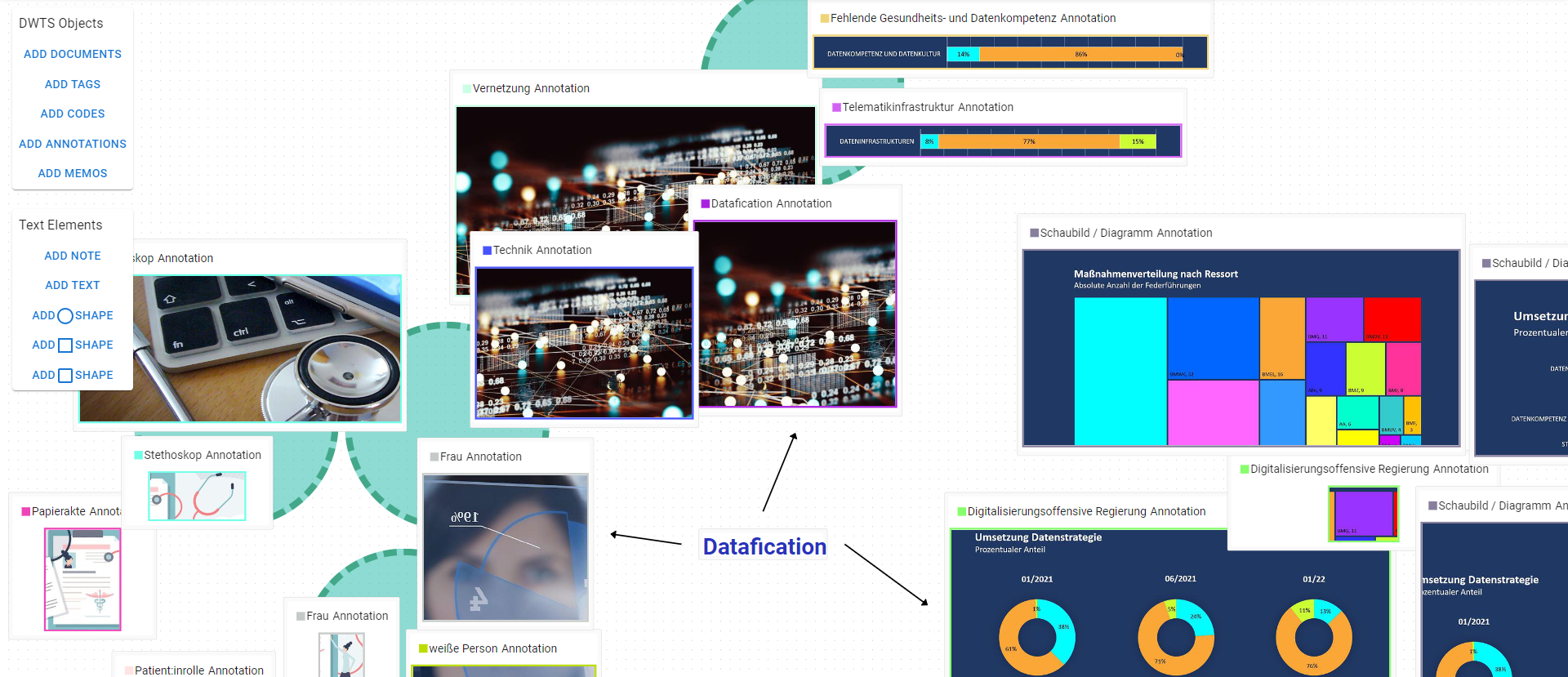 The whiteboard can also be used to visually organize non-textual data, like images or videos.