Data Export & Import
While DATS provides a comprehensive, end-to-end environment for discourse analysis, research data rarely lives in a vacuum. You may need to export your findings for statistical analysis in external software (like R or SPSS), share your codebook with a colleague using a different DATS instance, or simply create a secure backup of your entire project.
DATS provides highly flexible export and import mechanisms to ensure you always have complete sovereignty over your data.
1. Exporting Data
DATS allows you to export your data at both a granular, contextual level and a macro, project-wide level. Exports are typically generated as standardized formats (like CSV for tables or structured JSON/ZIP files for project data), making them highly interoperable.
Contextual Exporting (The Export Icon)
Throughout the DATS interface, you will frequently encounter the standard Export icon (usually depicted as a tray with a downward-pointing arrow). Clicking this icon allows you to export the specific subset of data you are currently viewing.
You can find this contextual export button in various places, including:
- Document Search View: Export metadata and statistics for your currently filtered search results.
- Tag & Folder Explorers: Export your structural taxonomies.
- Code Explorer (Annotation View): Export your hierarchical Codebook.
- Annotation Tables: Export a CSV spreadsheet of your filtered text or image annotations, perfect for external quantitative reporting or supplementary material for a publication.
Full Project Export ("Export All")
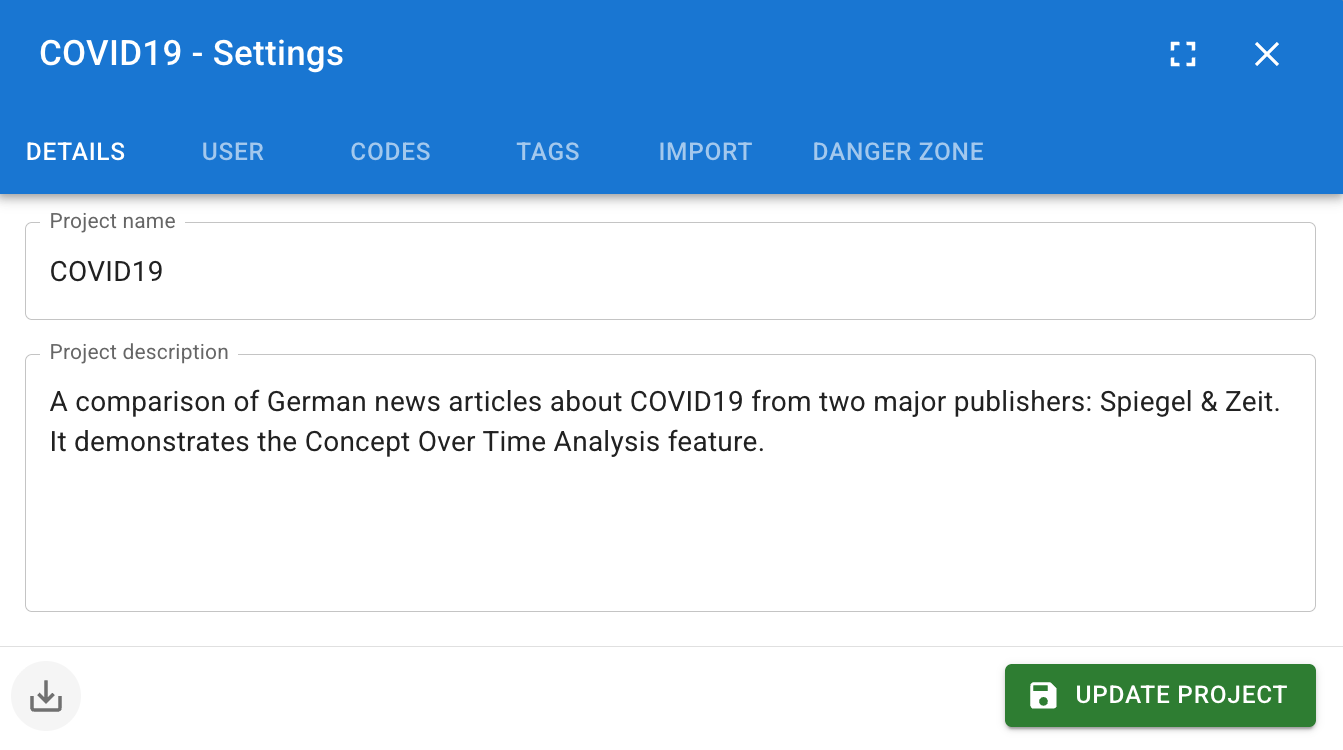
If you need to back up your entire project—including all documents, annotations, codes, tags, users, and memos—you can generate a complete project archive.
- Click the Settings icon (the cog wheel) at the bottom of the main left navigation bar.
- Ensure you are on the Details tab.
- Click the large Export all button.
- DATS will package your entire workspace into a secure ZIP file and download it to your local machine.
Use the 'Export all' button to generate a complete backup of your research workspace.
2. Importing DATS Data
(Note: This section covers importing structured DATS data, such as project backups or codebooks. To upload raw files like PDFs or URLs for analysis, please refer to the Document Upload Dialog guide).
If you have an exported DATS ZIP file—perhaps a backup you previously created, or a specific Tag taxonomy sent to you by a colleague—you can easily merge it into your current workspace.
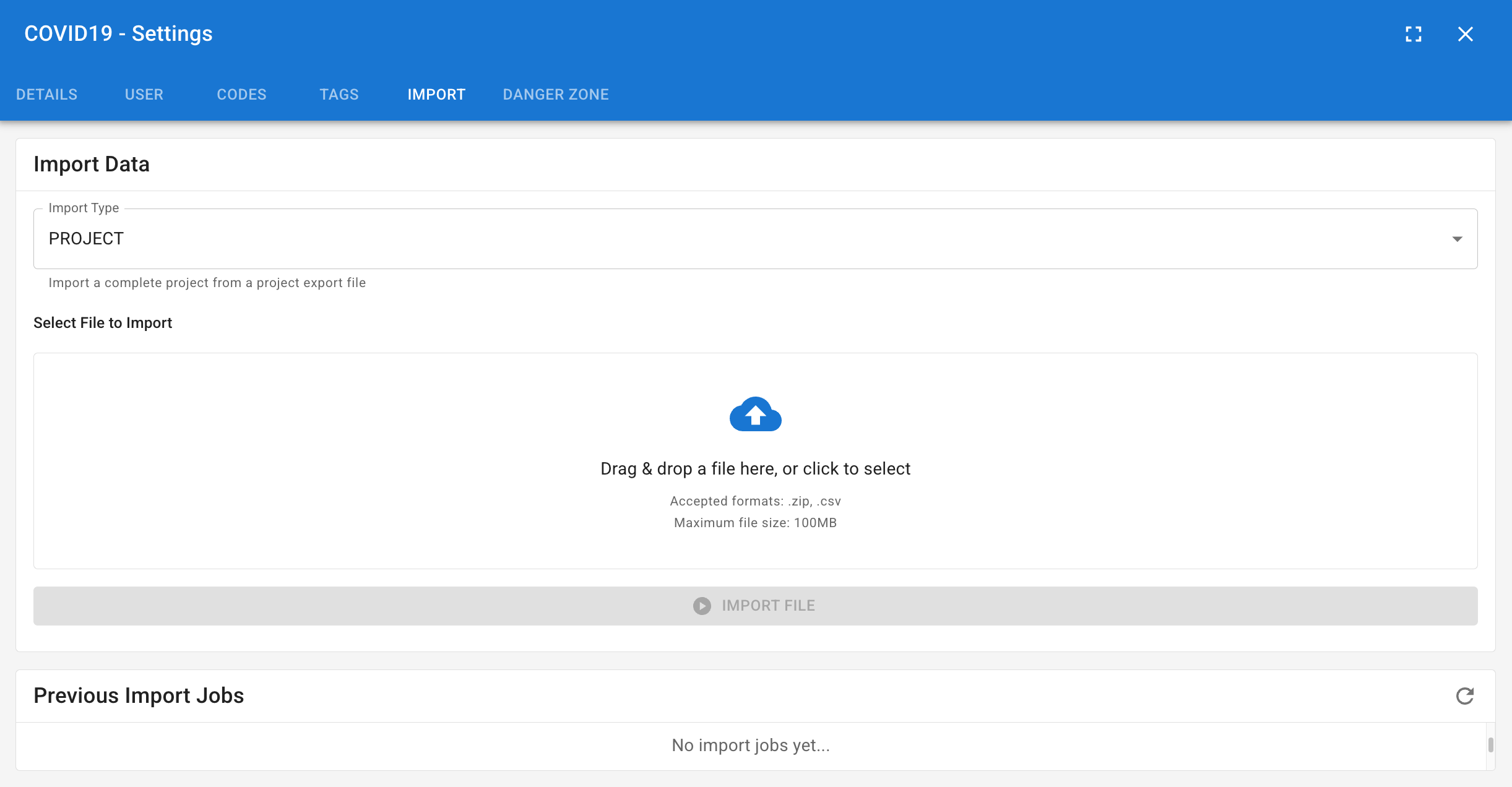
- Open the Project Settings (the cog icon in the bottom left navigation bar).
- Navigate to the Import tab.
- Select Data Type: Use the dropdown menu to specify exactly what kind of data is inside the ZIP file you are about to upload. You can choose to import specific entities like Codes, Tags, Folders, or Users.
- Tip: If you are restoring a full project backup, select Project.
- Click the file selection area to browse your computer and select the .zip file.
- Click the Import file button.
Select the correct data type before importing a DATS backup file.
DATS will process the archive and populate your current project with the imported data!